AI VIDEO EDITOR
Edit my video
Browser-based editing · Chat-driven revisions · MP4 download
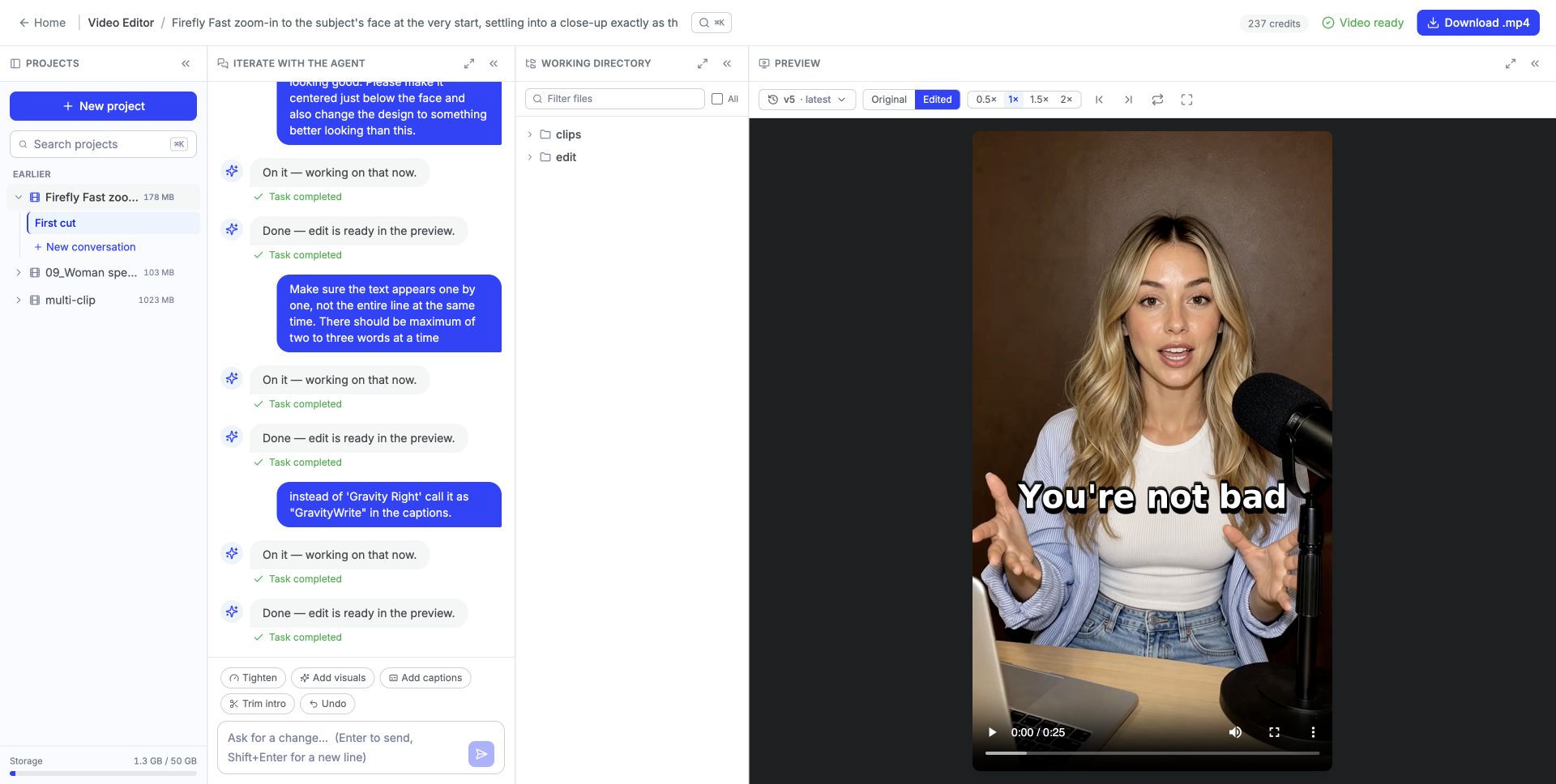
“Ask for a change. See it in the preview.”
START WITH THE GOOD PARTS
Keep your message. Cut the stumbles.
A good take can still have filler words, false starts, and long pauses. Choose your auto-edit options and let GravityWrite prepare the first cut. Review it, then tell the agent what to refine.
Fewer filler words. Remove the “um,” “uh,” and “you know” that interrupt your point.
Cleaner takes. Cut spoken mistakes, restarts, and retakes.
One video from several clips. Upload multiple clips and bring them together in a single first cut.
An easier first cut
SAY WHAT YOU WANT TO CHANGE
Give feedback the way you would to an editor.
Type a request in everyday language. The agent makes the edit, and the updated video appears in the preview. Keep the conversation going until you are happy with the result.
“Tighten the intro.”
“Add captions, with two or three words on screen at a time.”
“Move the captions just below the speaker’s face.”
“Use ‘GravityWrite’ in the captions.”
Start with shortcuts for Tighten, Add visuals, Add captions, Trim intro, or Undo.
MAKE EVERY WORD EASIER TO FOLLOW
Captions you can fine-tune by asking.
Add styled captions, then adjust their placement, appearance, and wording in chat. Ask for short groups of words on screen, change the color, or correct a brand name.
SEE WHAT CHANGED
Compare the cut. Keep your options.
Switch between the original and edited video, open earlier versions, and inspect the result at your own pace. Slow playback down, step through frames, or expand the preview before you download.
Original and edited views · Revision history · Playback speed and frame controls · MP4 download
Original · Edited
Review each revision before you download.
From raw clips to your next finished video.
01
Upload your footage
Create a project and add one or more clips. The upload form supports MP4, MOV, WebM, and MKV.
02
Choose your first cut
Select filler-word removal, spoken-mistake removal, or captions. Add a short note about what you want the cut to do.
03
Refine it in chat
Watch the preview and ask for changes to the pacing, captions, or visuals.
04
Review and download
Compare versions, check the finished edit, and download your video as an MP4.
For the videos you already have to make.
Creator videos
Clean up a talking-head take and add captions that are easy to follow.
Product demos
Remove spoken stumbles and tighten the explanation around the part you want viewers to see.
Lessons and tutorials
Refine a recorded walkthrough, correct caption wording, and review the result before sharing.
FAQs
That take in your camera roll? Give it a first cut.
Upload your clips, tell GravityWrite what you want, and start shaping a video you are ready to share.
Edit my video